Write a source code blog using Windows Live Writer
This is a my first blog using Windows Live Writer 2011.
The first nice feature is I can see my preview of this article which I am writing offline. Because when I added this blog in Windows Live Writer, I was asked whether I want to download my blog theme to local so that I can see my blog preview offline.
Another feature is that I want to try whether I can set something in Windows Live Writer for computer source code. Because I have not use any plugin in my this blog site to highlight or border computer source code.
OK, let me try to find something here…
Unfortunately I got nothing using Windows Live Writer directly, I think I have to use Plug-in, OK, I see the "Plug-in" button on the top when you select "Insert" menu:
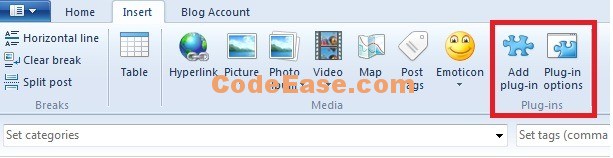
Just click the "Add plug-in" button, and you will open a webpage: it is a Windows Live Writer plug-in list page
We just choose a code plugin which the download rate is high. I choose this one: Insert Code for Windows Live Writer
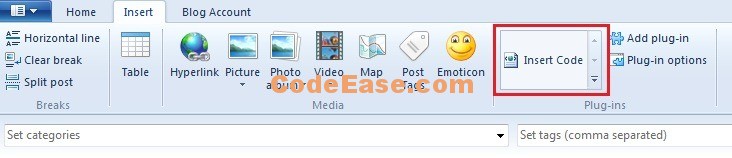
Download it an install, and save current article on local , re-start Windows Live Writer.. OK, when you select insert menu, you can see there is a new button there, Insert Code:
           foreach (TrendingCfgPoint cfgPoint in selectedTrendingCfgGrp.TrendingCfgPointList)
            {
                TrendingObject tObj = new TrendingObject();

                tObj.SysPointInfo.HostDBIndex = cfgPoint.HostDBIndex;
                tObj.SysPointInfo.Number = cfgPoint.PointNumber;
                tObj.DisplayOrder = cfgPoint.ShowIndex;
                tObj.LineColor = cfgPoint.LineColor;
                tObj.LineWidth = cfgPoint.LineWidth;

                TrendingObjectList.Add(tObj);
            }
You can see there are many red underlines in the source code which mean they are error code, actually I do not want to the error lines display.
But don’t worry , when you publish your post, the red lines will gone automatically.
OK, I finished my first post with computer source code using Windows Live Writer.